> ## Documentation Index
> Fetch the complete documentation index at: https://docs.affinda.com/llms.txt
> Use this file to discover all available pages before exploring further.
# General Field Configuration
> Configure field properties in Affinda such as data types, required flags, default values, and parsing rules so extracted data matches your downstream schema.
Field configuration settings allow users to customize how data is extracted, processed, and displayed in Affinda's platform. These settings ensure the extracted data meets specific requirements and can be easily integrated into downstream workflows.
Field configuration options can be accessed by Workspace Owners and Admins by clicking 'Configure Fields' in the top right corner of the document validation view.
## Detailed guide for Schema Design
Click here for Affinda Academy tutorial
## Basic Configuration
### Field Name
The field name represents the label for the extracted data in the validation UI. It is user-defined and helps the model in extracting the field from documents; as such, it is important to have clear and relevant field names.
### Field Description
Users may optionally enhance the model's predictions by providing additional context, such as how the data is typically labelled and where it appears on the page.
**Adding more documents** is the recommended way to enhance model accuracy. However, a clear field description can also improve extraction results
The field description and Text Options serve different purposes. The **field description** guides the model on *what* to extract from the document — for example, "Extract the billing address, not the supplier's address." **Text Options** control *how* the extracted value is formatted in the output — for example, trimming whitespace, normalising dates, or stripping trailing characters. If the model is extracting the correct text but the format is wrong, use Text Options. If the model is extracting from the wrong place on the document, refine the field description.
The field description controls *what* the model extracts from the document. If you instead need to control *how* the extracted value is formatted in the output (for example, trimming whitespace or normalising dates), use [Text Transformations](/configuration/standard-fields#text-transformations).
## Data Types
Your field's data type determines how extracted values are processed and standardized. Different data types are available to ensure that structured and unstructured data is correctly categorized. The selected data type influences the structure of the data and the post-processing logic applied to extracted values, ensuring consistency and accuracy.
Text, Numbers, Dates, Location, Phone Number, URLs
Groups and Tables
Options and Data Source
Labels and True/False
Signatures, Seals, and Headshots
If the raw data extracted from the document is unable to be logically parsed into a format consistent with the data type selected, no parsed value will be returned. Edit the annotation to improve extraction accuracy, or in the case where the bounding box is correct, edit the value directly by typing the correct value
## Basic Field Settings
### Enabling Fields
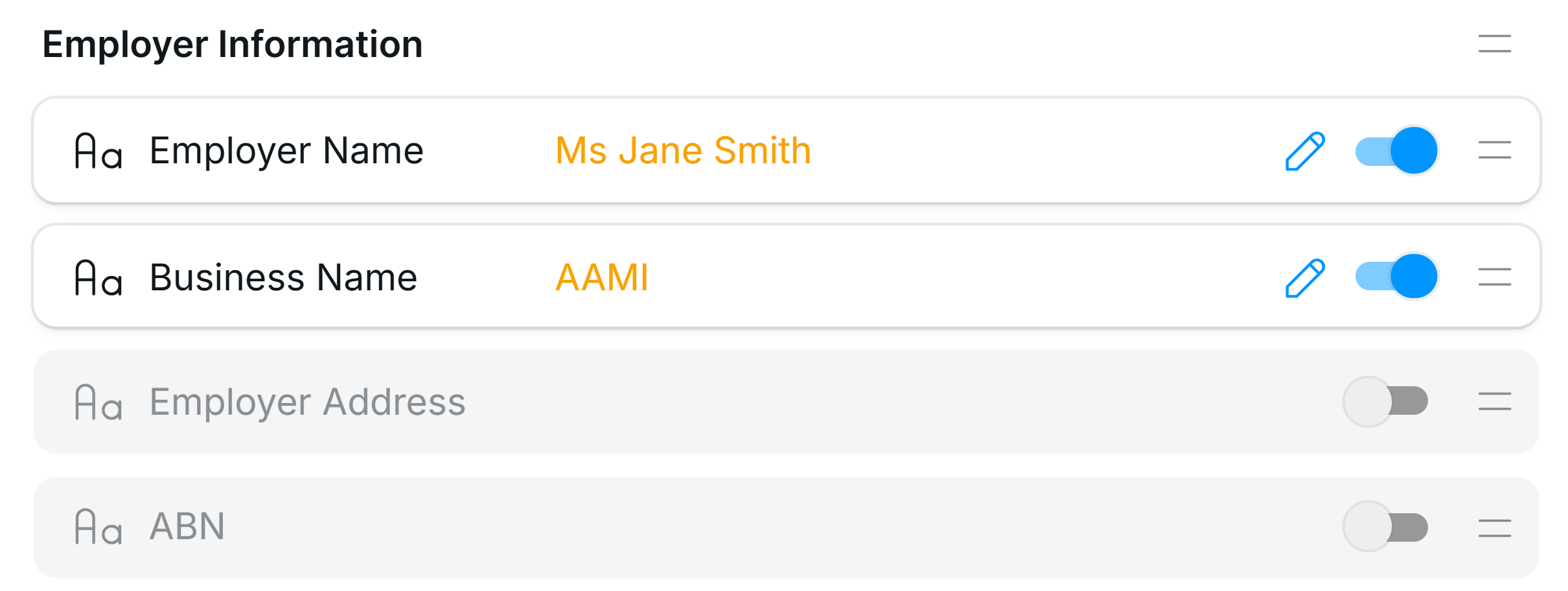
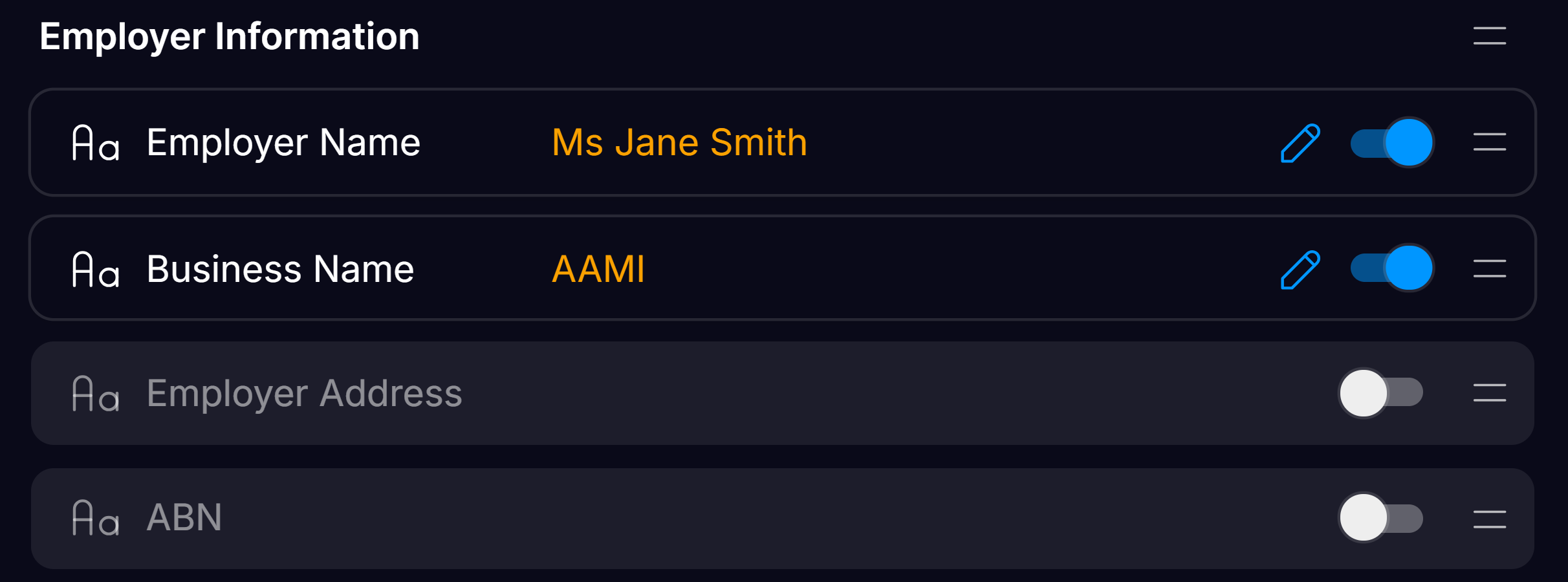
This setting determines whether the field should be predicted and visible in the extracted output. Users can toggle this option depending on whether they want the model to extract and display the field.
Disabling a field instead of deleting it lets the model keep all previously validated annotations and automatically restores them when the field is re‑enabled.
 ### Multiple Values
Enable multiple predictions only when a field can have **multiple distinct values** within a single document. Examples include:
* Line item tables on an Invoice
* Parties or Signatories in a Legal Contract
* Transactions in a Bank Statement
Enabling multiple values where you would generally not expect multiple distinct values in a document can reduce model accuracy (by overpredicting values) or risk noise and confusion in review workflows due to the presence of duplicates.
**Rule of thumb:** if there should only be one real value (even if it appears multiple times on the same document), stick to a single value. Only enable **multiple values** when the document structurally allows or expects multiple *distinct* values.
## Advanced Field Settings
### No rectangles
Used when a field value does not explicitly appear in the document but can be inferred through reasoning.
### Manual entry only
The field will not be predicted by the model and can only be entered manually.
### Slug
Defines the unique label used for the field in the API response.
## Re-parsing after changes to the Schema
When you make changes to the Document Types configuration, any documents that were parsed previously (both confirmed and documents in review) need to be re-parsed.
The Affinda app identifies documents that should be re-parsed, indicated by the reparse button turning orange in the top right-hand corner when opening the document in the Document Validation View. Clicking on this button will update the extraction to the latest document type configuration.
### Multiple Values
Enable multiple predictions only when a field can have **multiple distinct values** within a single document. Examples include:
* Line item tables on an Invoice
* Parties or Signatories in a Legal Contract
* Transactions in a Bank Statement
Enabling multiple values where you would generally not expect multiple distinct values in a document can reduce model accuracy (by overpredicting values) or risk noise and confusion in review workflows due to the presence of duplicates.
**Rule of thumb:** if there should only be one real value (even if it appears multiple times on the same document), stick to a single value. Only enable **multiple values** when the document structurally allows or expects multiple *distinct* values.
## Advanced Field Settings
### No rectangles
Used when a field value does not explicitly appear in the document but can be inferred through reasoning.
### Manual entry only
The field will not be predicted by the model and can only be entered manually.
### Slug
Defines the unique label used for the field in the API response.
## Re-parsing after changes to the Schema
When you make changes to the Document Types configuration, any documents that were parsed previously (both confirmed and documents in review) need to be re-parsed.
The Affinda app identifies documents that should be re-parsed, indicated by the reparse button turning orange in the top right-hand corner when opening the document in the Document Validation View. Clicking on this button will update the extraction to the latest document type configuration.