> ## Documentation Index
> Fetch the complete documentation index at: https://docs.affinda.com/llms.txt
> Use this file to discover all available pages before exploring further.
# Automated Machine Validation for Extracted Data
> Use Affinda's machine validation to automatically approve high-confidence documents and route low-confidence cases to human reviewers for full automation.
Validating the data extracted from documents is a critical part of the Affinda workflow, ensuring the accuracy and reliability of data sent downstream. Machine Validation assesses whether extracted data meets predefined conditions and ensures that user review is only required by exception to deliver significant efficiency gains.
## Key Components of Machine Validation
Affinda utilizes two primary methods for machine validation, often most effective when combined.
Data mapping is a powerful capability aimed at enhancing the quality and accuracy of data extracted from documents. With data mapping configured, the extracted data can be mapped against a list of known options from the customer's own data to validate that it meets expected values. This provides greater confidence in the data extracted by the model and ensures seamless integration with downstream systems.
Unmatched data triggers user review, prompting manual correction or alternative actions.
See [Picklists](/configuration/picklists) for more information.
Business-specific rules and logic can be customized based on document type, fields extracted, and unique use cases. Validation rules offer flexibility, accommodating criteria such as:
* Mandatory fields
* Model confidence thresholds
* Expected data formats
* Relationships between document fields
* Other custom business logic
See [Validation Rules](/configuration/validation-rules) for more information.
## Machine Validation Settings
Auto-confirmation can be enabled at a Workspace level in the **Workflow Settings.** When enabled, documents that pass all validation rules are automatically confirmed, eliminating the need for manual review.
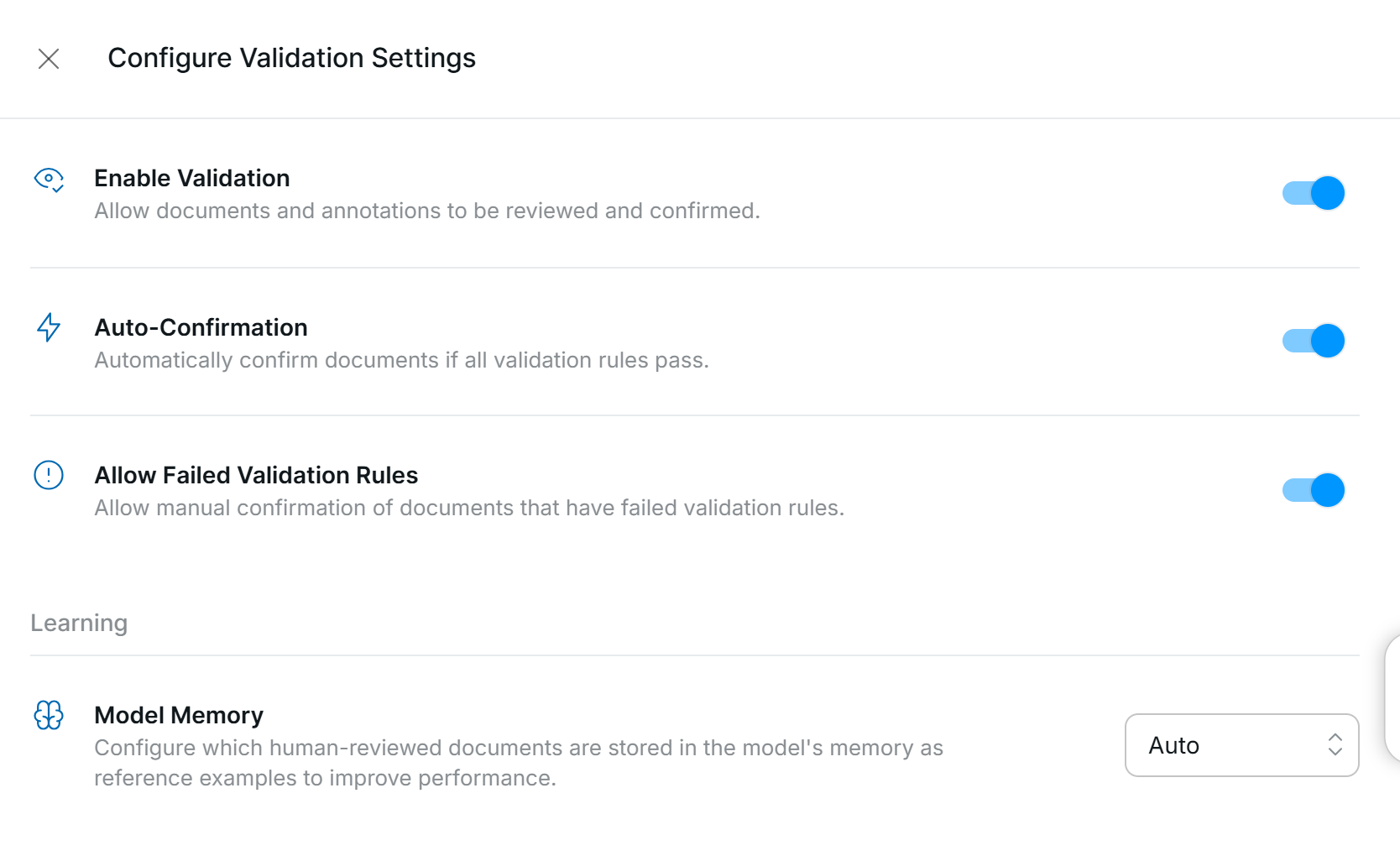
 Auto-confirmed documents are not used in Model Memory.