> ## Documentation Index
> Fetch the complete documentation index at: https://docs.affinda.com/llms.txt
> Use this file to discover all available pages before exploring further.
# Picklist fields for constrained extracted values
> Configure picklist fields in Affinda to constrain extracted values to a fixed list of options, including hard-coded, dynamic, and API-driven picklists.
## Overview
Affinda’s data-mapping capability lets you normalise extracted values against your own lists, giving you cleaner data and fewer downstream corrections.
## When to choose each type
| Data Type | Data format | Value prediction mechanism |
| ----------- | ----------------------------------------------------------- | ------------------------------------------------------- |
| Options | Short, fixed list (≈ 50 values or fewer) | Model predicts the value directly |
| Data Source | Larger, often two-dimensional list from a downstream system | Raw data from the document matched by string comparison |
## Options
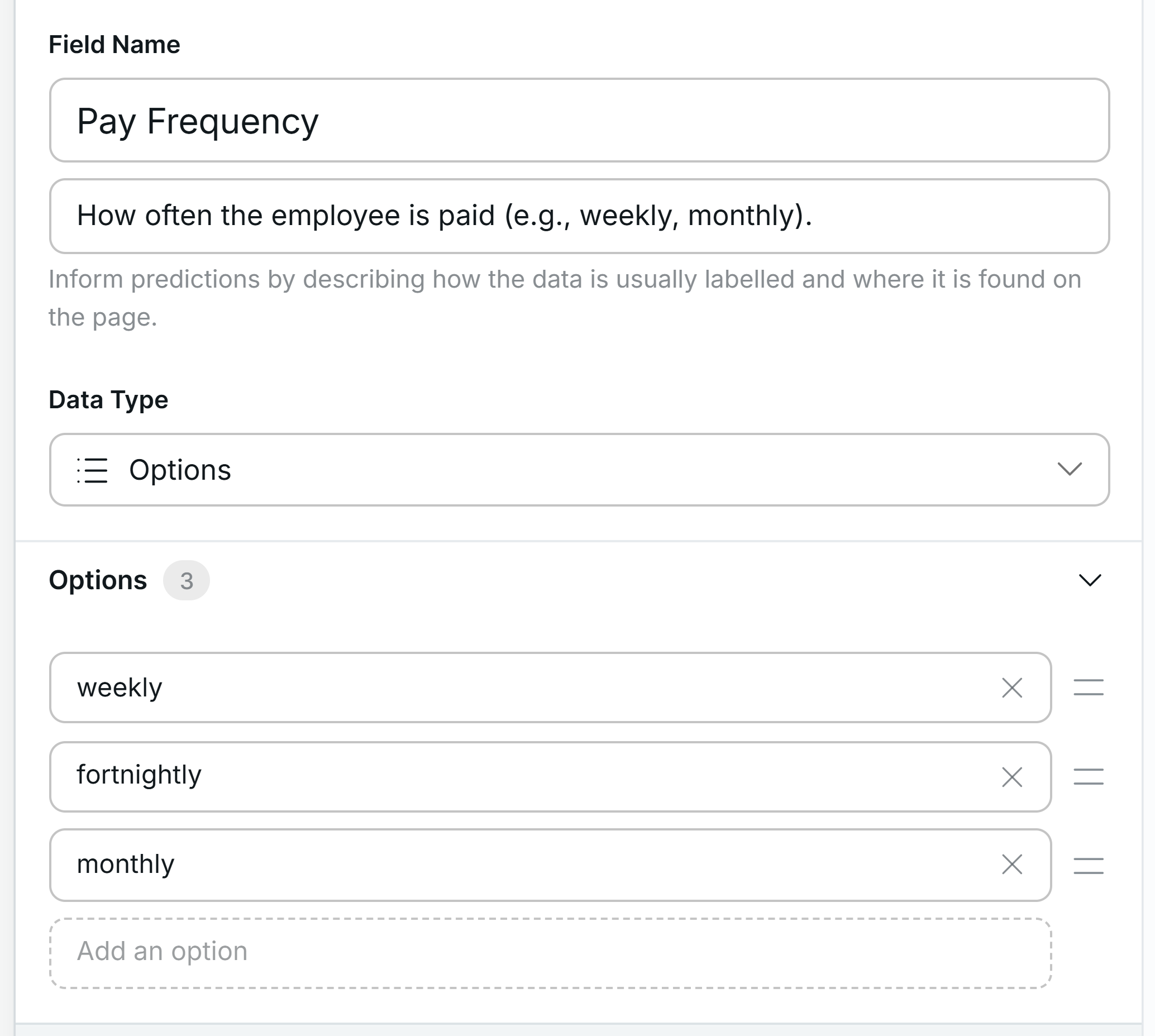
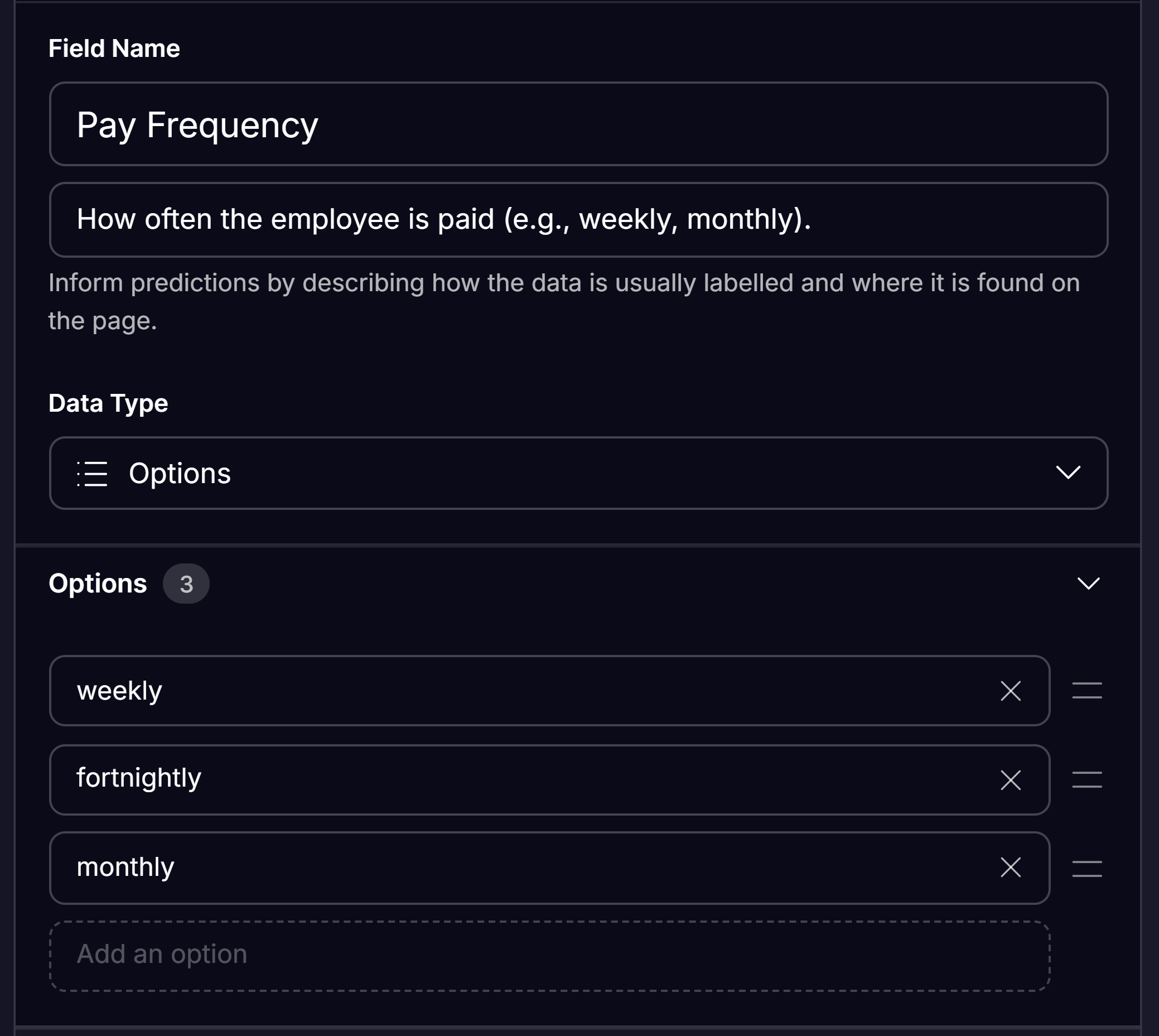
A field whose **Data Type** is set to **Options** stores a single column of permitted values. Enter the items directly in the field editor. Any value outside this list is flagged during validation.
 **Best practice tips**
* Keep the list concise.
* Use consistent casing.
* Review periodically to remove unused terms.
## Data Sources
Data Sources serve as lightweight master data tables that you can manage directly within Affinda. Affinda supports CSV, XLSX or JSON files as Data Sources, meaning you can upload anything from supplier registers to nested product catalogues.
Data Sources and Model Memory are often confused but serve different purposes. Data Sources are used for **mapping and enrichment** — matching extracted values against your reference data. They do not train the extraction model. [Model Memory](/configuration/model-memory) is the feature responsible for improving extraction accuracy over time. In short: Model Memory teaches the model *what* to extract, while Data Sources validate *whether* the extracted value matches your known data.
**Best practice tips**
* Keep the list concise.
* Use consistent casing.
* Review periodically to remove unused terms.
## Data Sources
Data Sources serve as lightweight master data tables that you can manage directly within Affinda. Affinda supports CSV, XLSX or JSON files as Data Sources, meaning you can upload anything from supplier registers to nested product catalogues.
Data Sources and Model Memory are often confused but serve different purposes. Data Sources are used for **mapping and enrichment** — matching extracted values against your reference data. They do not train the extraction model. [Model Memory](/configuration/model-memory) is the feature responsible for improving extraction accuracy over time. In short: Model Memory teaches the model *what* to extract, while Data Sources validate *whether* the extracted value matches your known data.
 ### Creating a Data Source
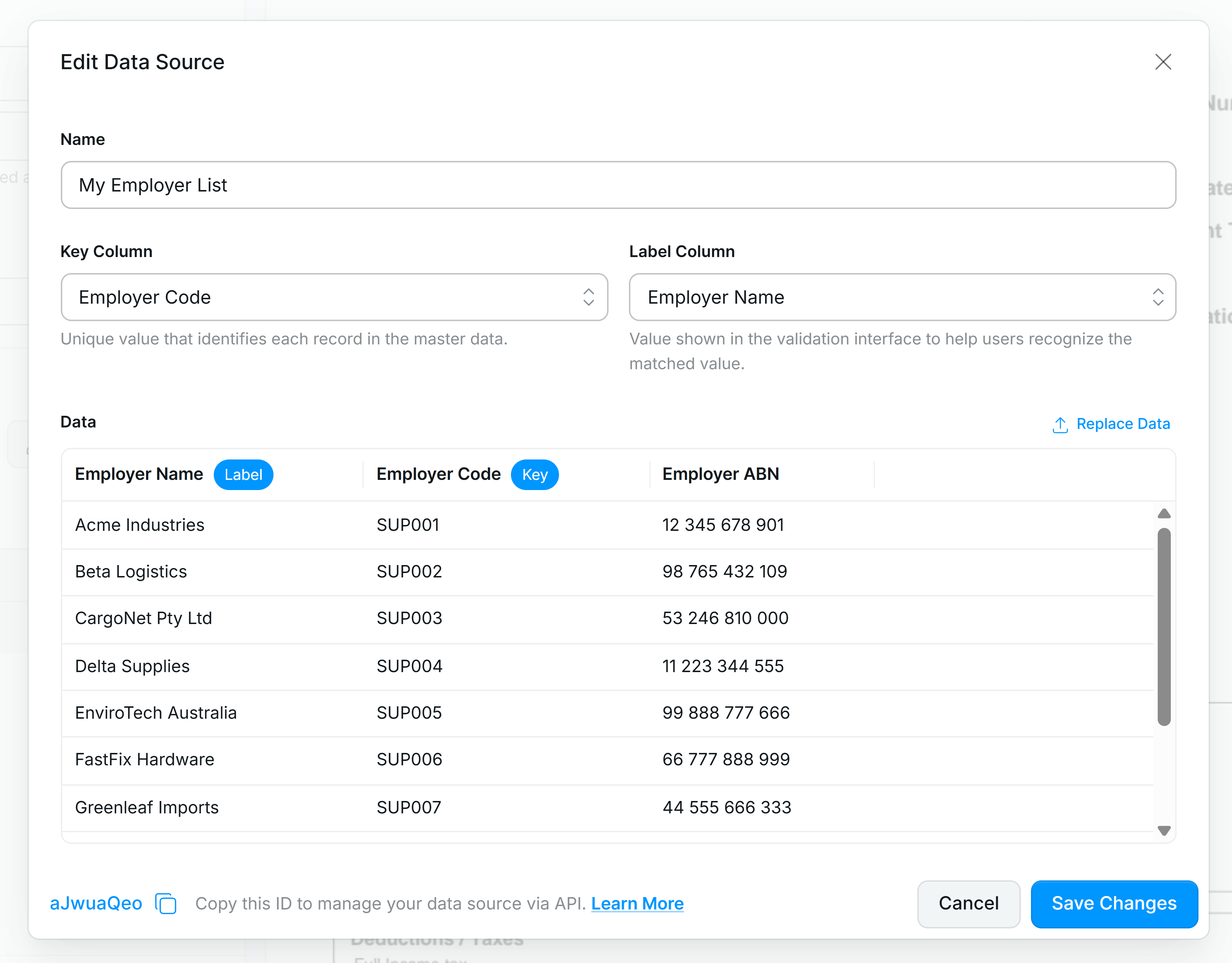
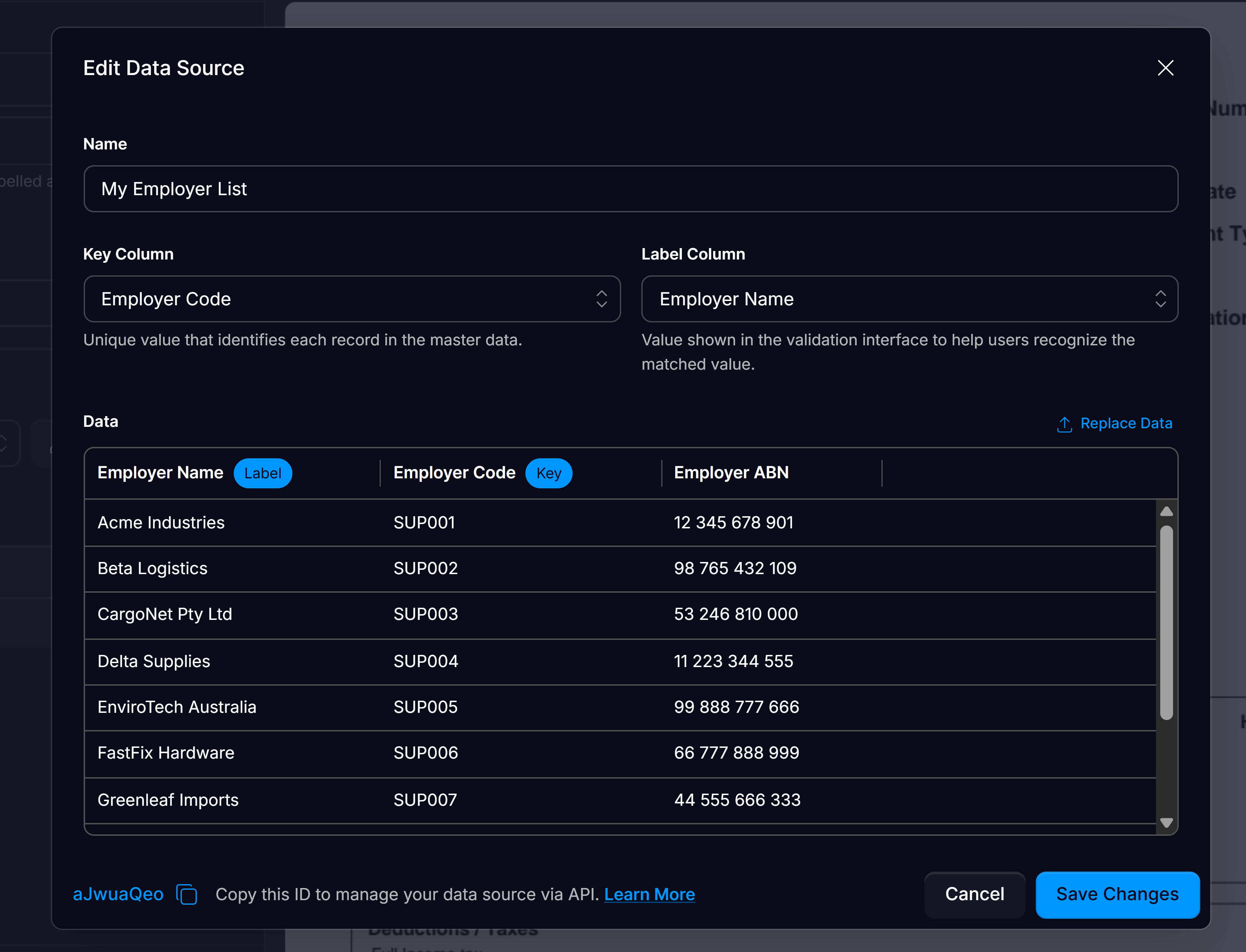
A *key column* is the single field in your source table whose values are guaranteed to be unique; it is used by Affinda to reliably identify each record unambiguously.
The *label* is the human-readable name stored for each record in a Mapping Data Source; it's what users will see in the validation UI and drop-downs.
### Learn from user feedback
Under Data Source options, users can enable **Remember selections**. When enabled, the platform records the confirmed value for a given raw-text extraction and automatically reuses that value the next time the same text appears in a new document. This helps speed up future searches, improve suggestions, and ensures user validations contribute to ongoing performance gains.
**Remember Selections** is particularly useful when extracted values consistently differ from your reference data — for example, abbreviated supplier names.
When a user confirms a match that differs from the raw extraction, Affinda learns it as a mapping for future documents.
This option is **enabled by default** for every new Data Source field.
### Automating updates
Call `PUT /data-sources/{id}` for full replacement or `PATCH /data-sources/{id}` for incremental updates. Schedule these calls from your integration.
### Mapping document fields
### Creating a Data Source
A *key column* is the single field in your source table whose values are guaranteed to be unique; it is used by Affinda to reliably identify each record unambiguously.
The *label* is the human-readable name stored for each record in a Mapping Data Source; it's what users will see in the validation UI and drop-downs.
### Learn from user feedback
Under Data Source options, users can enable **Remember selections**. When enabled, the platform records the confirmed value for a given raw-text extraction and automatically reuses that value the next time the same text appears in a new document. This helps speed up future searches, improve suggestions, and ensures user validations contribute to ongoing performance gains.
**Remember Selections** is particularly useful when extracted values consistently differ from your reference data — for example, abbreviated supplier names.
When a user confirms a match that differs from the raw extraction, Affinda learns it as a mapping for future documents.
This option is **enabled by default** for every new Data Source field.
### Automating updates
Call `PUT /data-sources/{id}` for full replacement or `PATCH /data-sources/{id}` for incremental updates. Schedule these calls from your integration.
### Mapping document fields
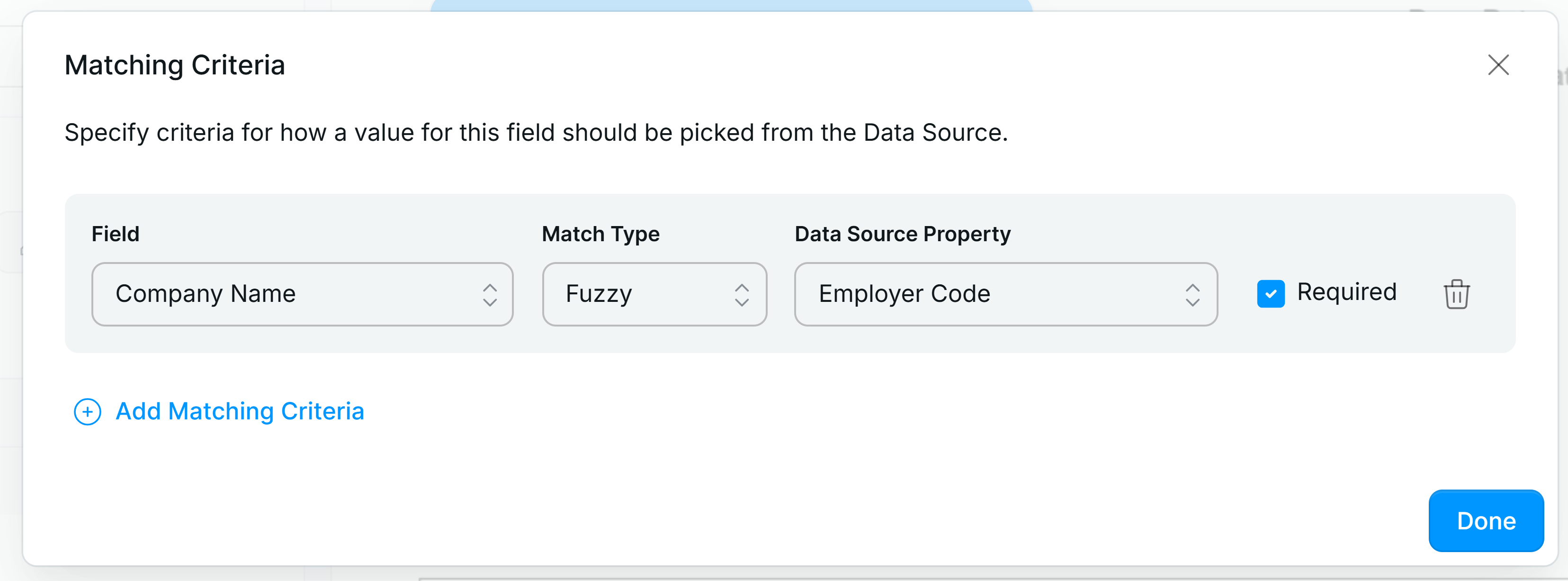
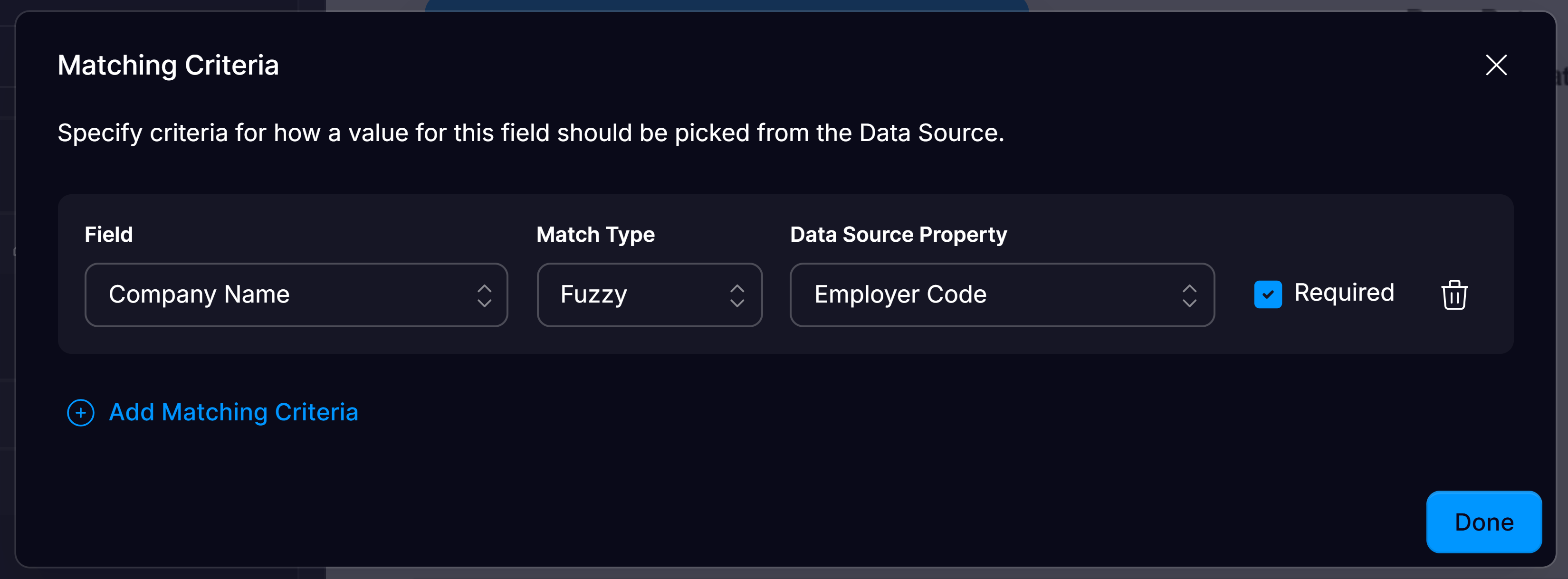 A *key column* is the single field in your source table whose values are guaranteed to be unique; it is used by Affinda to reliably identify each record unambiguously.
The *label* is the human-readable name stored for each record in a Mapping Data Source; it's what users will see in the validation UI and drop-downs.
* **Exact** – strings must be identical.
* **Partial** – succeeds when the extracted string appears anywhere in the candidate.
* **Fuzzy** – edit-distance logic allows minor typos.
### Tips for reliable matching
* Trim whitespace and normalise case in your source files.
* Ensure the key column is unique.
* Keep label strings short so they fit comfortably in the UI.
### API reference
```http theme={null}
GET /data-sources # List
POST /data-sources # Create
PUT /data-sources/{id} # Replace all rows
PATCH /data-sources/{id} # Update selected rows
DELETE /data-sources/{id} # Delete
```
A *key column* is the single field in your source table whose values are guaranteed to be unique; it is used by Affinda to reliably identify each record unambiguously.
The *label* is the human-readable name stored for each record in a Mapping Data Source; it's what users will see in the validation UI and drop-downs.
* **Exact** – strings must be identical.
* **Partial** – succeeds when the extracted string appears anywhere in the candidate.
* **Fuzzy** – edit-distance logic allows minor typos.
### Tips for reliable matching
* Trim whitespace and normalise case in your source files.
* Ensure the key column is unique.
* Keep label strings short so they fit comfortably in the UI.
### API reference
```http theme={null}
GET /data-sources # List
POST /data-sources # Create
PUT /data-sources/{id} # Replace all rows
PATCH /data-sources/{id} # Update selected rows
DELETE /data-sources/{id} # Delete
```