> ## Documentation Index
> Fetch the complete documentation index at: https://docs.affinda.com/llms.txt
> Use this file to discover all available pages before exploring further.
# Automatic splitting of multi-document PDFs
> Configure Affinda's automatic document splitting to break up multi-document PDFs into individual files for separate classification and extraction.
Document Splitting is a powerful feature that allows you to separate a single file containing multiple documents into individual documents for further processing. This is especially useful when working with batch-scanned files.
Once split, each document inherits the Workspace’s classification and extraction rules, simplifying downstream workflows.
## Detailed Tutorial for Validating Splitting
Click here for Affinda Academy tutorial
## Splitting Settings
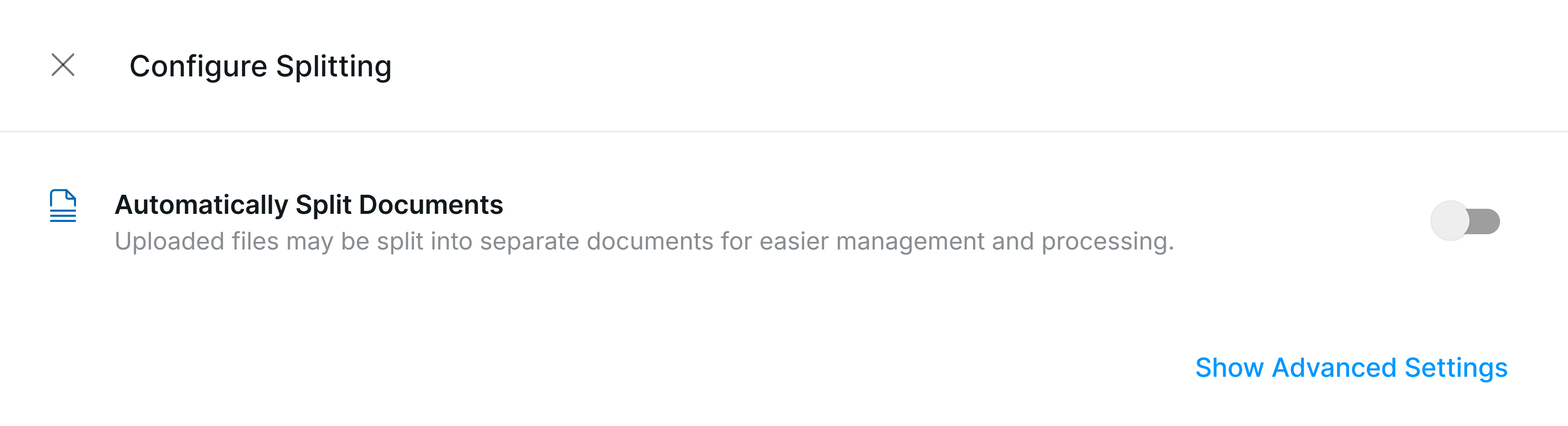
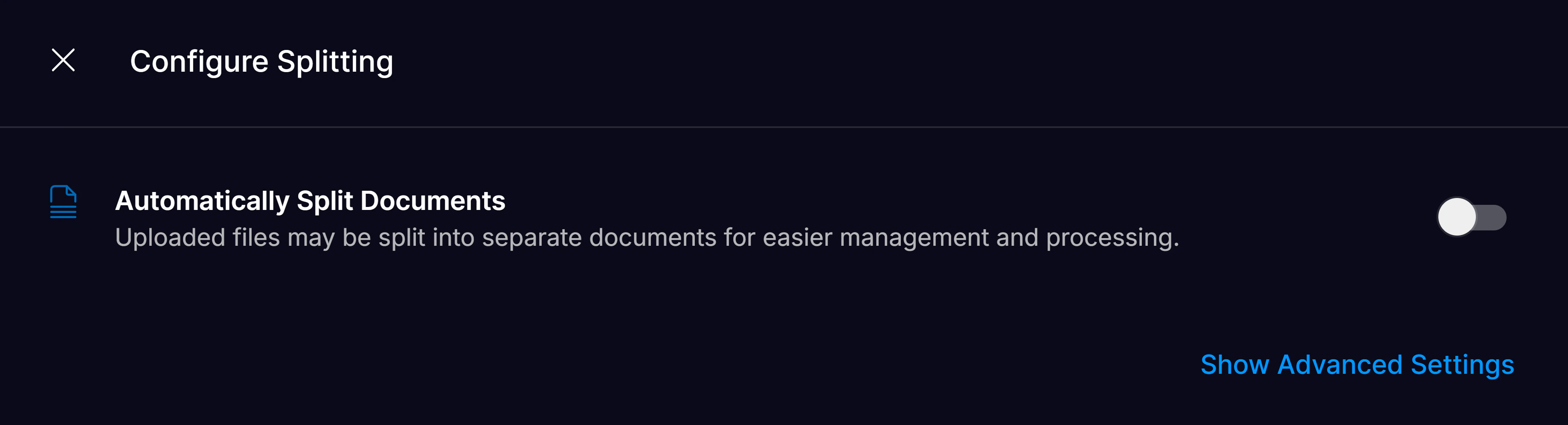 Configure splitting settings at the Workspace level by navigating to *Workflow Settings*.
Click on the toggle to enable the automatic splitting of files, then select the splitter you would like to use.
If splitting isn't working, first check that a splitter is selected in Workflow Settings — not just that the toggle is enabled.
### General Document Splitter
All customers will have access to Affinda's General Document Splitter. This model has been designed to identify specific cues that indicate a new document, including:
* Change in page numbering sequence (e.g. Page 1)
* Change in key party within the document (e.g. an invoice from a different supplier is identified)
* Change in key document identifier
### Custom splitter
While the General Document Splitter has been designed to work across most use cases, there will be some use cases that will need additional configuration. Two different types of custom splitters can be created:
1. **LLM based**\
Design a prompt that details when a file should be split
2. **Key word**\
Split when a specific keyword(s) is found on a page
[Reach out to the Affinda team](https://www.affinda.com/contact) if the General Document Splitter is not meeting your use case, and you want to discuss a custom splitting model.
## What happens to documents that are split?
When a document is split into multiple components, new files are created in your account. These new files are created with a suffix added to the file name (e.g. \[filename]\_1, \[filename]\_2, etc.).
Within the API response of the original file, users will also be able to find the identifier of the new files created, so that they can then request the data extracted from these newly created files. The PDF file of the documents is also included in the response so that new documents created can be added to your platform.
## Editing the splitting
While the document splitter automatically splits a document, users will still have the option to manually edit the splitting or combine documents again through the 'Edit Pages' option within the document validation UI. This gives users full control over their documents.
If there are any edits made to the file, the AI model will re-parse the affected documents to give the most accurate predictions. Any field validations made will be lost.
See the [**Tutorial: Reviewing splitting and classification**](/academy/split-classify) for step-by-step instructions.
Configure splitting settings at the Workspace level by navigating to *Workflow Settings*.
Click on the toggle to enable the automatic splitting of files, then select the splitter you would like to use.
If splitting isn't working, first check that a splitter is selected in Workflow Settings — not just that the toggle is enabled.
### General Document Splitter
All customers will have access to Affinda's General Document Splitter. This model has been designed to identify specific cues that indicate a new document, including:
* Change in page numbering sequence (e.g. Page 1)
* Change in key party within the document (e.g. an invoice from a different supplier is identified)
* Change in key document identifier
### Custom splitter
While the General Document Splitter has been designed to work across most use cases, there will be some use cases that will need additional configuration. Two different types of custom splitters can be created:
1. **LLM based**\
Design a prompt that details when a file should be split
2. **Key word**\
Split when a specific keyword(s) is found on a page
[Reach out to the Affinda team](https://www.affinda.com/contact) if the General Document Splitter is not meeting your use case, and you want to discuss a custom splitting model.
## What happens to documents that are split?
When a document is split into multiple components, new files are created in your account. These new files are created with a suffix added to the file name (e.g. \[filename]\_1, \[filename]\_2, etc.).
Within the API response of the original file, users will also be able to find the identifier of the new files created, so that they can then request the data extracted from these newly created files. The PDF file of the documents is also included in the response so that new documents created can be added to your platform.
## Editing the splitting
While the document splitter automatically splits a document, users will still have the option to manually edit the splitting or combine documents again through the 'Edit Pages' option within the document validation UI. This gives users full control over their documents.
If there are any edits made to the file, the AI model will re-parse the affected documents to give the most accurate predictions. Any field validations made will be lost.
See the [**Tutorial: Reviewing splitting and classification**](/academy/split-classify) for step-by-step instructions.