> ## Documentation Index
> Fetch the complete documentation index at: https://docs.affinda.com/llms.txt
> Use this file to discover all available pages before exploring further.
# Validate extracted data in the review interface
> Review and correct extracted data in the Affinda document validation interface, including keyboard shortcuts, side-by-side viewing, and bulk approval.
Affinda’s document validation UI provides an intuitive and efficient tool for reviewing the data predicted by Affinda’s AI models and making any necessary adjustments. It has two main purposes:
1. **Ensuring 100% accuracy** – while Affinda’s models are highly accurate, there may be data that needs human review. The validation UI allows this ‘human in the loop’ to correct any inaccuracies to ensure that the data is accurate before being exported for downstream processing.
2. **Creating a self-learning feedback loop** - any corrections made in the validation UI can be used to improve model performance over time. Documents confirmed by users may be added to [Model Memory](/configuration/model-memory), providing a reference set of documents that can be provided to the model when new documents are uploaded. This ensures that accuracy starts off high, and then improves as your model learns the formats commonly processed.
It is important that users using the validation UI ensure that the tool is used consistently and accurately to avoid any model regression.
## Detailed Tutorials for User Validation
Click here for Affinda Academy tutorial
Click here for Affinda Academy tutorial
Click here for Affinda Academy tutorial
## Field Indicators
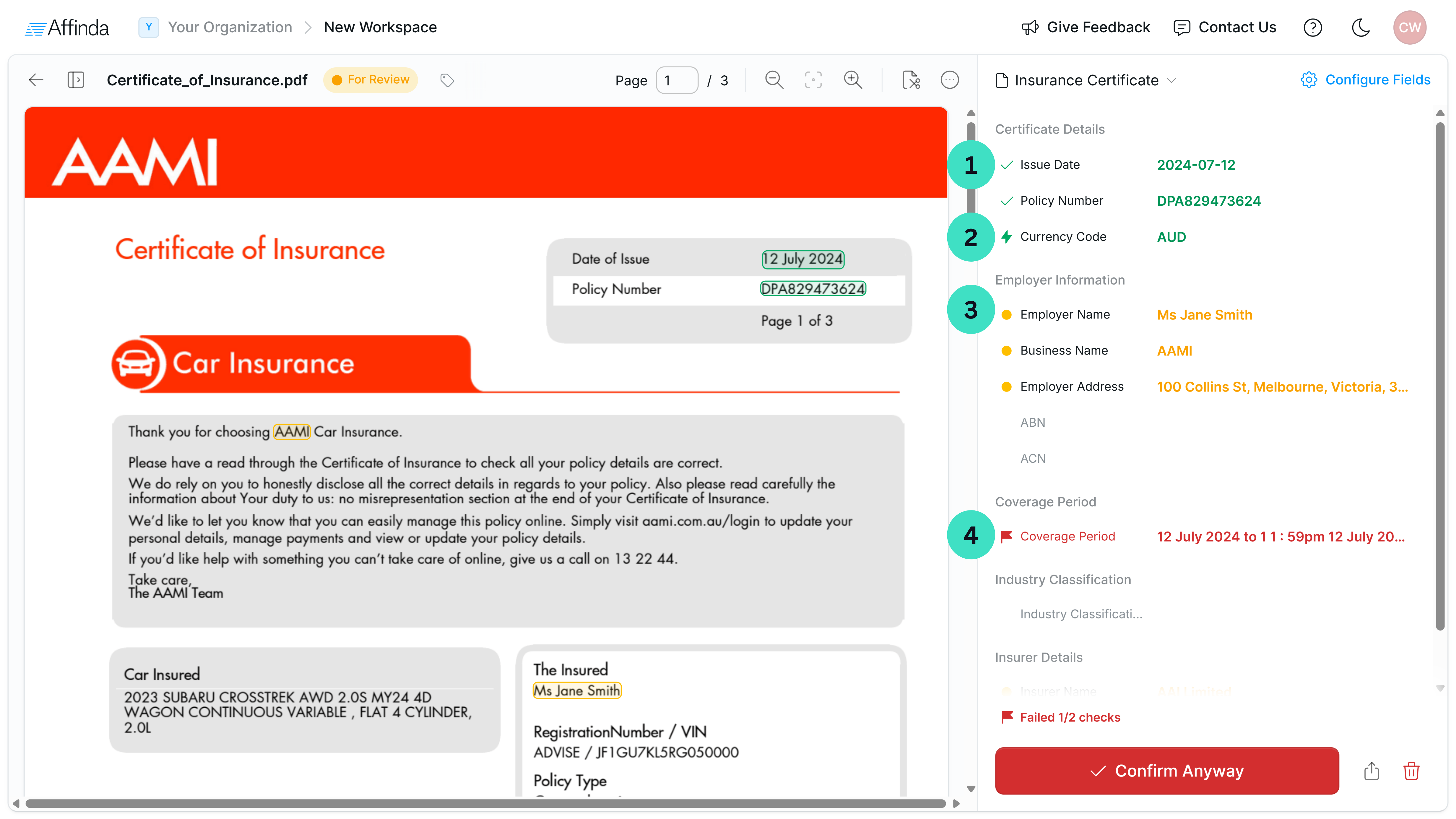
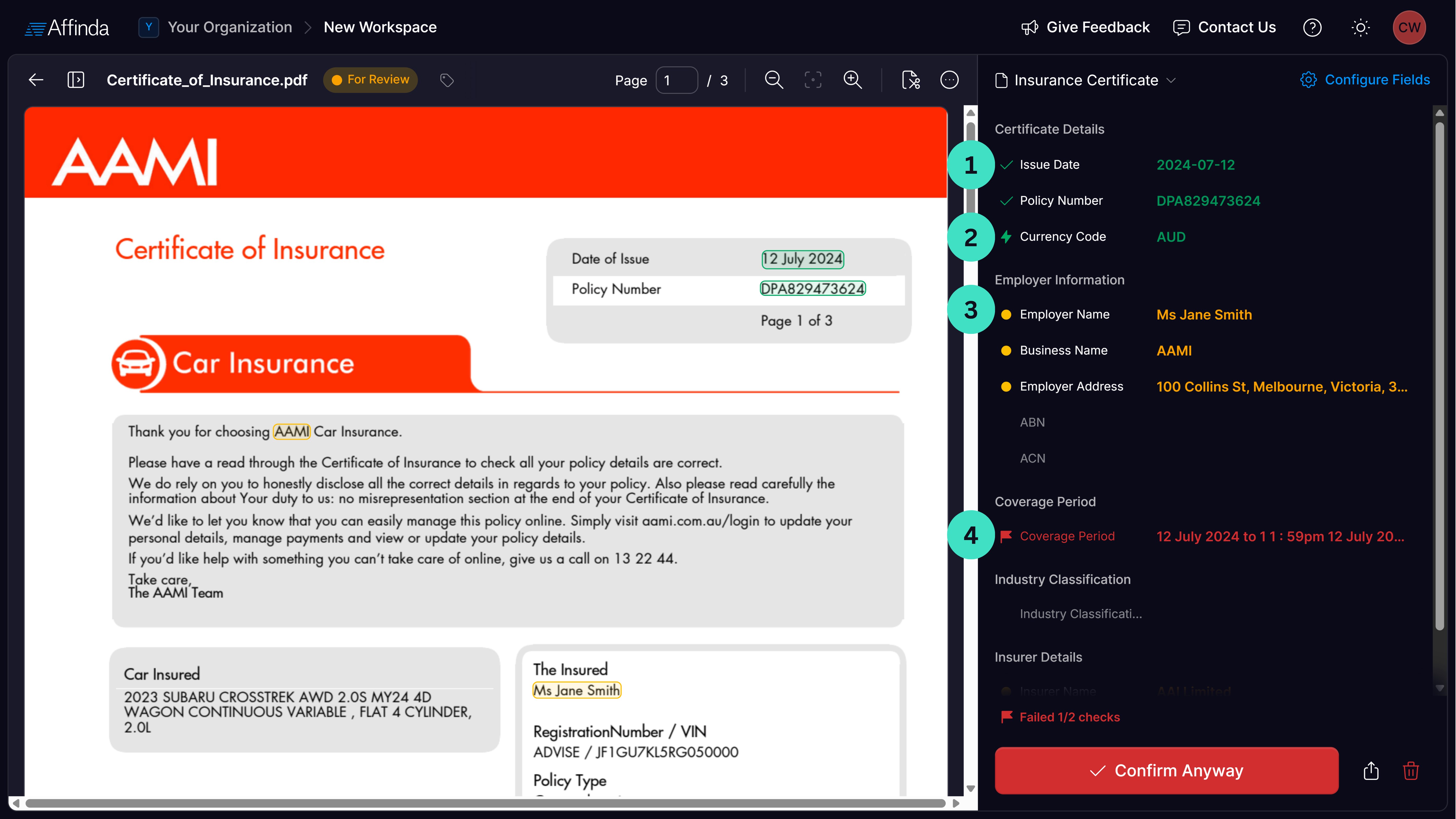 The following symbols indicate the status of each data field:
1. **Green Lightning Bolt:** Field has been automatically confirmed, meeting all validation criteria.
2. **Green Checkmark:** Field has been manually confirmed by a user.
3. **Orange Dot:** Field has not yet been validated and requires manual review.
4. **Red Flag:** Field has failed one or more validation rules and needs correction.
## Document Queue Management
The Affinda Platform has been designed so that teams can process documents simultaneously. To ensure that effort is not duplicated, controls have been implemented to stop two users working in the same document:
* After a user confirms a document, the next document in the queue that is not being looked at by another user will be presented
* In the cases where multiple users have the same document open, the user who opens the document last will have a warning displayed to notify them of another user in the document
The following symbols indicate the status of each data field:
1. **Green Lightning Bolt:** Field has been automatically confirmed, meeting all validation criteria.
2. **Green Checkmark:** Field has been manually confirmed by a user.
3. **Orange Dot:** Field has not yet been validated and requires manual review.
4. **Red Flag:** Field has failed one or more validation rules and needs correction.
## Document Queue Management
The Affinda Platform has been designed so that teams can process documents simultaneously. To ensure that effort is not duplicated, controls have been implemented to stop two users working in the same document:
* After a user confirms a document, the next document in the queue that is not being looked at by another user will be presented
* In the cases where multiple users have the same document open, the user who opens the document last will have a warning displayed to notify them of another user in the document